Links in and out of documents
Within a document, it’s easy to add a link to another component, another page, another document, or remote web link.
The Anchor Component
An `a`nchor tag is an invisible component (although styles will be applied to content within it) that allows linking to other components. The href attribute supports 3 types of content.
- Named Action - These are the standard links to and from pages (see below).
- #id - If set, then the link is an action for a different document or Url. Effectively like the href of an anchor tag in html.
- url - A relative or remote link to a document or webpage.
The content within a link can be anything, including images; text; svg components and more. There can also be more than one component within the link.
Page Named Action
The simplest link type is navigational. The possible actions are (case insensitive) as follows:
- FirstPage
- PrevPage
- NextPage
- LastPage
These are self-evident in their purpose, and no other attributes need defining. It does not matter what page they are put on, they will perform the action if possible.
<a href='nextpage' >Next Page Link</a>
For example we can create a navigation header.
<?xml version="1.0" encoding="utf-8" ?>
<!DOCTYPE HTML PUBLIC "-//W3C//DTD HTML 4.01//EN"
      "http://www.w3.org/TR/html4/strict.dtd">

<html xmlns='http://www.w3.org/1999/xhtml'>
<head>
    <title>Navigation Links</title>
    <meta name="author" content="Scryber" />
    <style type="text/css">
        /* Or Header Style with 4 columns */
        .header{
            background-color: #EEE;
            column-count:4;
            text-align:center;
        }
        /* Our Link button style */
        .header a{
            display:block;
            border: solid 1pt #DDD;
            border-radius: 4pt;
            padding:6pt;
            margin:6pt;
            break-after:always;
            text-decoration:none;
            color: #333;
            font-size:10pt;

        }
        /* And our divs */
        div {
            margin: 20pt 0 0 20pt;
        }
        div.break{
            page-break-after:always;
        }

    </style>
</head>
<body style="font-size:20pt;">
    <header>
        <!-- navigation on the header -->
        <nav class="header">
            <a href="FirstPage">First Page</a>
            <a href="PrevPage">Prev Page</a>
            <a href="NextPage">Next Page</a>
            <a href="LastPage">Last Page</a>
        </nav>
    </header>
    <!-- Each on it's own page -->
    <div class="break">First</div>
    <div class="break">Second</div>
    <div class="break">Third</div>
    <div class="break">Fourth</div>
    <div>Fifth</div>
</body>
</html>
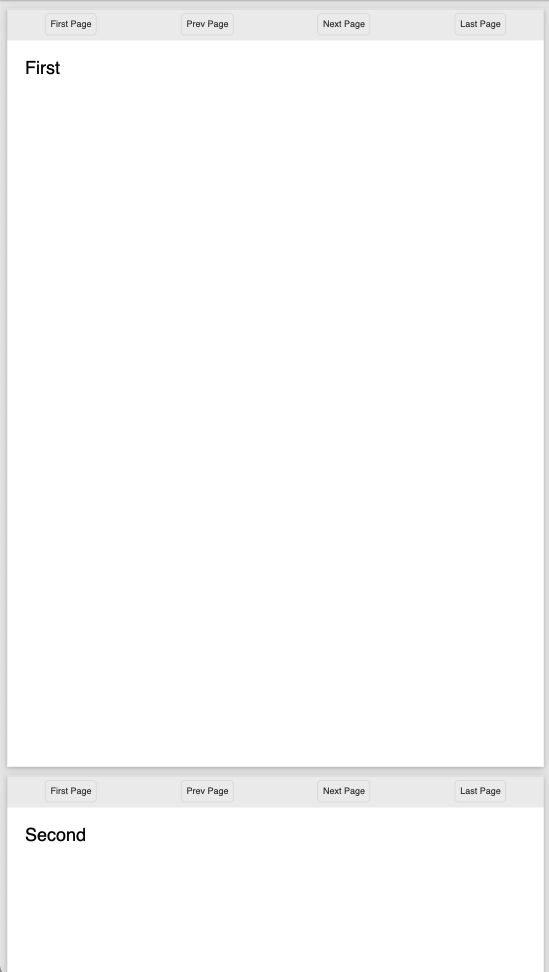
Linking within documents
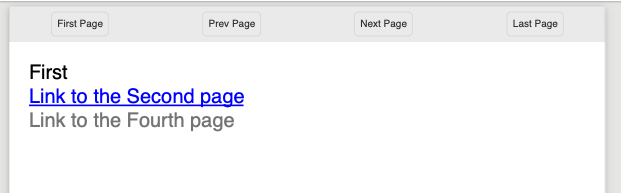
When navigating around the documment, scryber supports the direct linking to a specific page or component using the id being referenced attribute. Prefix with a # to identify it is an element witin the document.
By default anchor links will be underlined and in blue. But can be styled as needed.
<?xml version="1.0" encoding="utf-8" ?>

<div id="first" class="break">
    First <br />
    <a href="#second" >Link to the Second page</a>
    <br />
    <a href="#fourth" style="text-decoration:none; color:gray;" >Link to the Fourth page</a>
</div>
<div id="second" class="break">Second</div>
<div id="third" class="break">Third</div>
<div id="fourth" class="break">
    Fourth <br />
    <a href="#first" >Link to the first page</a>
</div>
<div>Fifth</div>
External Links to Urls
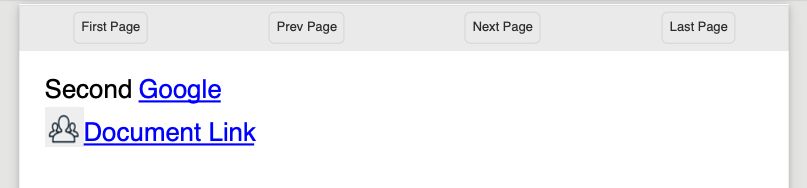
Using the href attribute a remote link can be made to any url or local document. If it’s not one of the other type it will be assumed to be a link. Links can also contain images or any other content, and can use the target=’_blank’ to open in a new tab.
 <!-- A web link to the google home page -->
<a href="https://www.google.com" target="_blank" >Google</a><br/>

<!-- a link to a local pdf that will open in a new readr tab or window -->
<a alt="Document Link" href="ReadMeSample.pdf" target="_blank" >
    <img src="./images/group.png" style="width:30pt; display:inline" />Document Link</a>
Note
Some of the browser pdf readers do not support the full navigaional links capabilities (or allow them). Reader applications generally do.